


Downloading Fonts for Designs
- Ashleigh

- Jan 3, 2021
- 2 min read
Have you ever had a design idea in mind, but that Cricut Access or basic fonts just aren't cutting it? No stress! I'm going to show you how to download free for use fonts from one of my favorite websites. Before downloading or using any fonts, please ask yourself if your projects are for personal or commercial use. Personally, I always choose fonts that have both personal and commercial freedom in case I decide to sell or use a design on a product down the road. If you want to learn how to find 100% free fonts, click here.
Let's navigate over to DaFont.com, one of the most popular sites for finding, previewing, and downloading fonts. My favorite category on their website is Script Fonts. Once I navigate to that menu, I choose my font. For this instructional, I chose the font "A Alley Garden" by wep. These instructions are based on using Google Chrome on a computer with Windows 10.
Step One: Select download and wait for the zipped file to be downloaded onto your computer.

Step Two: Navigate to your Downloads Bar. I am using Google Chrome, so the downloads bar is found at the bottom of my browser. Select the little arrow to the right of the file, and choose "Show in Folder".

Step Three: Find your new font in your Downloads Folder. Once you've found it, right-click and select "Extract All".

Step Four: Select your destination for your extracted files, I typically just hit extract and keep it within my Downloads File, but you can create a separate fonts file if you'd like. Once it has finished extracting, it will automatically open.
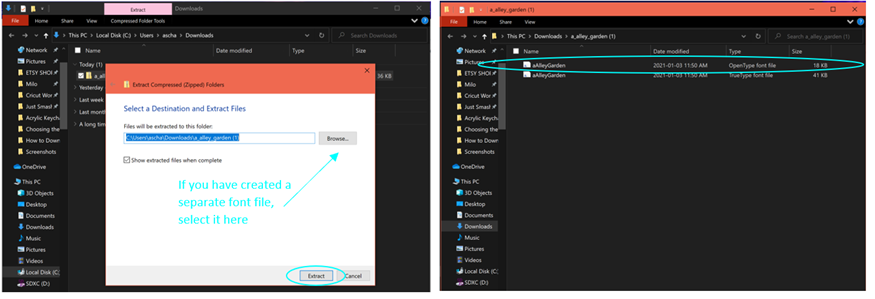
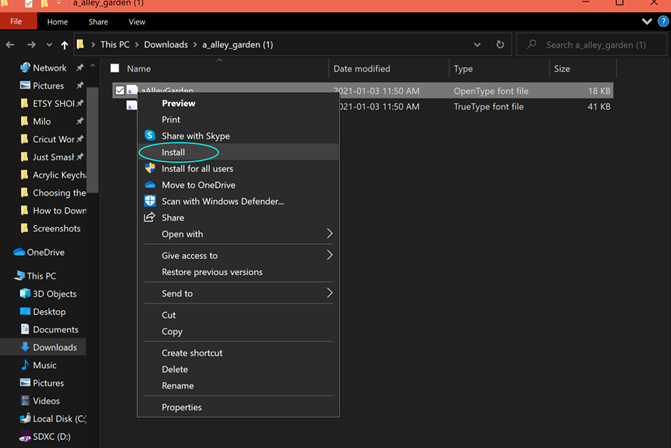
Step Five: Select the OpenType Font File, right-click, and select "Install". This will download the font onto your computer for use in Cricut Design Space, Microsoft Word, or any other apps that you may use to create your project designs!
*For Macbook or Apple, you will select the "TrueType" font file.
That's it! You're done. That font will now be able to be used on your computer, and most importantly in Design Space! If you have your Design Space open while doing this process, you will have to save your project and re-open the window to see your new font.
Happy Crafting!
With love,
Ashleigh


Comments